S
By Suhas Das
Author
5 views
In Documentum, job reports are typically generated and stored in specific locations depending on the type of job. You can find the reports for Documentum jobs in the following places:
1. Documentum Administrator (DA)
- Location: In the Documentum Administrator (DA), you can view job execution history and reports directly.
- Steps:
- Log into Documentum Administrator.
- Navigate to Administration > Job Management > Jobs.
- Select the job you are interested in.
- Click on Execution History to view the reports, including success/failure logs and any output generated by the job.
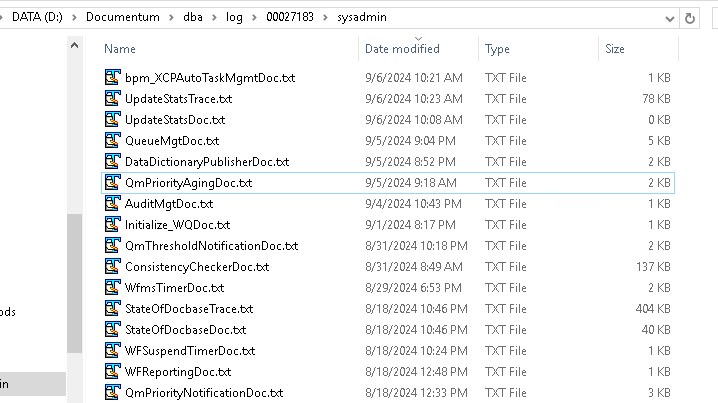
2. File System (Log Files)
- Many jobs, especially those like
DMCleanorDMFilescan, generate log files that are stored in the file system. - Location:
- You can find these logs in the following directory:
%DOCUMENTUM%/dba/log/<docbase ID>/sysadmin/ - Each job will have a specific log file, typically named with the job's object ID or name, followed by a
.bator.logextension.
- You can find these logs in the following directory:
3. API Output
- Jobs that run API commands (such as
Consistency CheckerorUpdate Statistics) might store their results in log files within a similar directory:%DOCUMENTUM%/dba/log/<docbase ID>/api/<job_object_ID>.log
4. Job-Specific Locations
- Some jobs, like
Log Purge, might store their results within the repository itself, creating an audit trail or summary report you can view from within Documentum.
How to Access Reports:
- Open the log files using any text editor to review details about the job's execution and results.
- You can also check the job’s status and output from the Documentum Administrator (DA) console.